Tutorial
In this tutorial we illustrate the main features of endofday by working through some simple examples at the command line.
Setting Up
The primary dependency for this tutorial is Docker and a few images available from the public Docker hub. To install docker on your machine, refer to the official documentation.
Once Docker is installed, install endofday by first pulling the official image:
$ docker pull jstubbs/eod
Create a directory for your endofday work and run the setup script there:
$ mkdir eod; cd eod
$ docker run -v $(pwd):/staging jstubbs/eod --setup
Running --setup installs a small bash script, endofday.sh, as well as an example configuration file, endofday.conf, in
the current working directory. That’s it—you are now ready to run endofday workflows on your local machine.
In order to execute tasks in the Agave cloud you will need an Agave account and API keys. To sign up for an Agave account and generate your client keys, see the beginners_guides.
Once you have your Agave credentials, update the endofday.conf file with the following fields inside the agave section:
usernamepasswordclient_nameclient_keyclient_secretapi_serverstorage_systemhome_dir
endofday will archive results of task executions to an Agave storage system whose id is the value configured for
storage_system within the directory home_dir. If storage_system and home_dir are not supplied, endofday
will attempt to use a sensible default for the given Agave tenant. Note that some tenants do not provide default
storage and execution systems.
Running Locally
endofday can execute entire workflows on your local machine. To illustrate this, we are going to work through a simple example that approximates the number \(\pi\) using basic algebra. The example is a toy one, but it illustrates how to use the main features of endofday. It also illustrates how to cast the map-reduce model of computation into the endofday framework.
The basic idea behind our \(\pi\) approximation is that, given a unit circle inscribed in a square, the ratio of the area of the circle to the area of the square is
Therefore, we can approximate \(\pi\) as 4 times an approximation of (area of circle)/(area of square). We can approximate the ratio of the areas by randomly picking coordinates \((x,y)\) in \([0,1]\) and determining if they are in the circle by checking the algebraic equation for a circle we all learned in elementary school: \(x^2 + y^2 \le 1\). The ratio of the areas will then be well approximated by the ratio of points in the circle to total points for a sufficiently large selection of coordinates.
We’re going to build a workflow to implement this approximation algorithm in three main steps:
- Create
nlists of coordinates to process. - Run
nworkers, one for each list produced in step 1, to determine how many points in the list are in the circle (and how many are outside). - Run an “aggregator” to sum the results from step two and compute the final \(\pi\) approximation.
By the end of this section we will have created a complete YAML workfile description that we can use to execute
the workflow. To get started, create a new text file called approximate_pi.yml (or something similar), and add the
following:
---
name: approximate_pi
This line simply supplies a name to our workflow. The name attribute is required but it can be any valid string.
Global Inputs & Outputs
Luckily for us, there are Docker images on the public hub available for each of these tasks. For step 1, we’ll use the
jstubbs/genpoints image to generate lists of random coordinates for use in step 2.
All input files in an endofday workflow are either global inputs or outputs from another task. We know from the
documentation of the genpoints program that the number of lists and the number of coordinates in each
list to be generated can be configured by supplying a configration file to the genpoints program. We can specify such
a configuration file as a global input to the entire workflow. To do so, we create an inputs collection just
below the workflow name and add our input file:
---
name: approximate_pi

inputs:
    - input <- genpoints.conf
To define the global input we provide two values—label and source—separated by <-. In this case, the label is
simply “input”. The label can be whatever we want, but it should be unique so that we can use it to reference the input
in other sections of the workflow definition. The source attribute, in this case “genpoints.conf”, tells endofday
where to find the file. Here we have provided a relative path, so endofday looks in the current working
directory. Alternatively, we could have provided any absolute path on the file system.
We also need to create the genpoints.conf file. All we have to do is supply the number of files and the number of
coordinates per file we want the genpoints program to generate. Since each file will be parsed in its own process, we’ll
choose to create four files and generate 10,000 coordinates in each. Here is what the config file should like like:
[genpoints]

files: 4
coords: 10000
Similarly, we can define global outputs for the workflow by listing outputs from specific tasks in the workflow. This feature is mainly useful as documentation (you are declaring this output to be a “final” output, not just an intermediate result) of your workflow. It’s also useful for making workflows composable, though this feature is still experimental.
---
name: approximate_pi

inputs:
    - input <- genpoints.conf

outputs:
    - approx_pi.pi
Processes
The heart of a workflow is the set of processes or tasks that will be invoked. Each process defines a Docker image to execute, a command to execute in the container, inputs and outputs for the container, and (optionally) a description of the task. Here is the process definition for the first step in our workflow:
processes:
    generate_coords:
        image: jstubbs/genpoints
        description: creates lists of randomly generated coordinates from [0,1]
        inputs:
            - inputs.input -> /data/gen.conf
        outputs:
            - /data/out_0 -> out_0
            - /data/out_1 -> out_1
            - /data/out_2 -> out_2
            - /data/out_3 -> out_3
        command: python ./genpoints.py -p /data/gen.conf
We’ve created a new entry in the processes section called generate_coords which is just a label for our process. It
can be anything as long as it is unique across the workflow. The image and description fields are
self explanatory. In the input section, we list all file inputs to the process. Here we have specified that we want to
use the input labeled “input” from the (global) “inputs” section and we want to map it to the path /data/gen.conf in the
jstubbs/genpoints container. We could have mapped it anywhere in
the container—endofday will take care of mounting the Docker volumes properly at runtime.
The outputs section is similar— we list all the outputs we expect from this container invocation in terms of their
paths in the container, and we assign each a unique label (unique within the outputs of this process). We happen to
know from our experience running the genpoints container that it stores the outputs in the /data directory and
labels them out_0 through out_n. In this case we configured it to generate four files.
Finally, the command value is what is actually passed to the docker run statement. We are executing the
genpoints script and passing a single argument, the location of our config file in the container. Note that this matches
the path specified in our our input declaration. This is by design.
Task Dependencies
We create task dependencies by declaring outputs from one task to be inputs to another task. For step 2 in our workflow
we will use the jstubbs/ctpts image to process the outputs created from the generate_coords task. There will be
four such processes since four outputs were created in step 1.
processes:
    generate_coords:
        image: jstubbs/genpoints
        description: creates lists of randomly generated coordinates from [0,1]
        inputs:
            - inputs.input -> /data/gen.conf
        outputs:
            - /data/out_0 -> out_0
            - /data/out_1 -> out_1
            - /data/out_2 -> out_2
            - /data/out_3 -> out_3
        command: python ./genpoints.py -p /data/gen.conf

    count_points_0:
        image: jstubbs/ctpts
        inputs:
            - generate_coords.out_0 -> /tmp/input
        outputs:
            - /tmp/output -> out
        command: python ./ctpoints.py -p /tmp/input

    count_points_1:
        image: jstubbs/ctpts
        inputs:
            - generate_coords.out_1 -> /tmp/input
        outputs:
            - /tmp/output -> out
        command: python ./ctpoints.py -p /tmp/input

    count_points_2:
        image: jstubbs/ctpts
        inputs:
            - generate_coords.out_2 -> /tmp/input
        outputs:
            - /tmp/output -> out
        command: python ./ctpoints.py -p /tmp/input

    count_points_3:
        image: jstubbs/ctpts
        inputs:
            - generate_coords.out_3 -> /tmp/input
        outputs:
            - /tmp/output -> out
        command: python ./ctpoints.py -p /tmp/input
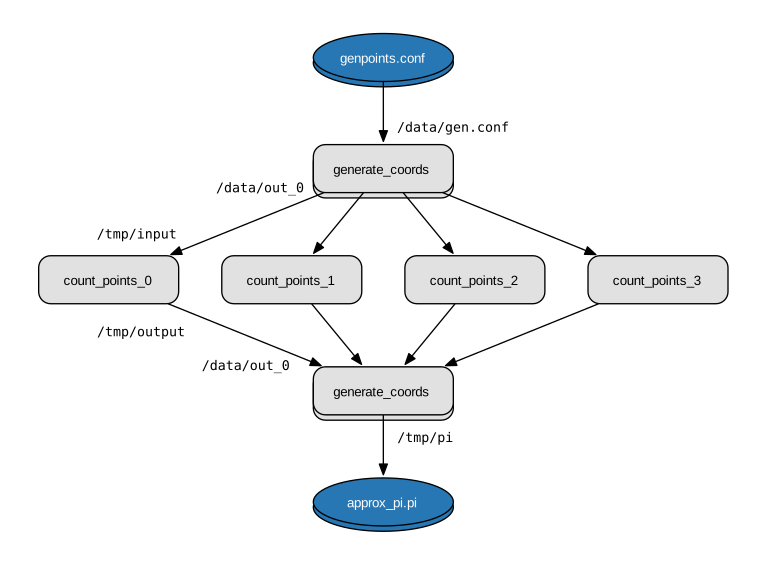
Note the input section of each of our count_points tasks: they refer to an output from the generate_coords task, but
this is the only input to the task. As a result, each count_points task depends on the generate_coords task, but none
of them depend on each other. When endofday executed this workflow,
all count_points tasks will execute in parallel.
Approximating Pi
Finally, we’ll use the jstubbs/apprxpi image to combine the results from step 2 and produce the final approximation.
This task will depend on all of the count_point tasks, as evidenced by the input section. Putting everything together
we now have a complete workflow:
---
name: approximate_pi

inputs:
    - input <- genpoints.conf

outputs:
    - approx_pi.pi

 processes:
     generate_coords:
         image: jstubbs/genpoints
         description: creates lists of randomly generated coordinates from [0,1]
         inputs:
             - inputs.input -> /data/gen.conf
         outputs:
             - /data/out_0 -> out_0
             - /data/out_1 -> out_1
             - /data/out_2 -> out_2
             - /data/out_3 -> out_3
         command: python ./genpoints.py -p /data/gen.conf

     count_points_0:
         image: jstubbs/ctpts
         inputs:
             - generate_coords.out_0 -> /tmp/input
         outputs:
             - /tmp/output -> out
         command: python ./ctpoints.py -p /tmp/input

     count_points_1:
         image: jstubbs/ctpts
         inputs:
             - generate_coords.out_1 -> /tmp/input
         outputs:
             - /tmp/output -> out
         command: python ./ctpoints.py -p /tmp/input

     count_points_2:
         image: jstubbs/ctpts
         inputs:
             - generate_coords.out_2 -> /tmp/input
         outputs:
             - /tmp/output -> out
         command: python ./ctpoints.py -p /tmp/input

     count_points_3:
         image: jstubbs/ctpts
         inputs:
             - generate_coords.out_3 -> /tmp/input
         outputs:
             - /tmp/output -> out
         command: python ./ctpoints.py -p /tmp/input

     approx_pi:
         image: jstubbs/apprxpi
         inputs:
             - count_points_0.out -> /data/out_0
             - count_points_1.out -> /data/out_1
             - count_points_2.out -> /data/out_2
             - count_points_3.out -> /data/out_3
         outputs:
             - /tmp/pi -> out
         command: python ./apprxpi.py -p /data
We can execute this workflow by issuing the following command:
$ ./endofday.sh approximate_pi.yml
The result of running this computation looks something like:
Using multiprocessing with 8 processes.
creating:  /staging/approx_pi/generate_coords/data
.  generate_coords
.  count_points_0
creating:  /staging/approximate_pi/count_points_0/tmp
creating:  /staging/approximate_pi/count_points_1/tmp
creating:  /staging/approximate_pi/count_points_3/tmp
.  count_points_1
.  count_points_2
creating:  /staging/approximate_pi/count_points_2/tmp
.  count_points_3
.  approx_pi
creating:  /staging/approximate_pi/approx_pi/tmp
3.14219
You’ll notice that endofday created a directory called approximate_pi in the current working directory, and inside
approximate_pi will be directories for each task that was executed. Within each subdirectory are all the outputs
generated by the task. For instance, inside approximate_pi/count_points_2/tmp you should see a file called output.
Integration with Agave
The endofday engine can be used with data and applications registered with Agave. We look at each individually.
Specifying Global Inputs As Agave URIs
One or more global inputs can be specified as Agave URIs of the form agave://my.storage.system.id//path/to/file as
well as any publicly available URI
via a supported transport, giving you the ability to reference resources on remote servers. For the list of supported
transfer protocols, see the Agave documentation for importing data.
As part of the task dependency analysis, endofday will determine if a remote global input is used by a local task. If so, it will automatically create a download task to retrieve the resource and insert it into the proper place in the workflow.
Here is an example of an alternative global inputs section for the approximate pi workflow that references an input file in an Agave storage system:
---
name: approximate_pi

inputs:
    - input <- agave://endofday.local.storage.com//data/genpoints.conf
Specifying Processes as Agave Applications
In addition to arbitrary docker images, processes within the workflow definition can refer to applications registered in the Agave application catalog. The endofday engine executes these applications by submitting a job to the Agave jobs service. Agave in turn executes the application on the execution system defined in the application definition, and endofday monitors the job status until the application completes. Outputs from an Agave application can be used as inputs to another task just like other task outputs. Note that if an Agave application output is needed as the input for a task running locally (e.g. a Docker container execution), endofday will create an additional task to download the output. Otherwise, endofday will leave the output on the remote system defined in the application definition.
The yaml syntax used to define an Agave application process is similar to that for Docker container processes, with a few exceptions. We illustrate with an example from the Validate workflow system, a set of applications for genome wide association studies. You can find complete examples of Validate workflow definitions in the eod repo.
processes:
    step_1:
        app_id: FaST-LMM-2.07
        execution: agave_app
        description: Step 1
        inputs:
            inputFAM:
                - inputs.fam_input
            inputPED:
                - inputs.ped_input
            inputBED:
                - inputs.bed_input
            inputBIM:
                - inputs.bim_input
            inputMAP:
                - inputs.map_input
            inputPHENO:
                - inputs.pheno_input
        parameters:
            MainFileset: "P"
            SimFileset: "BEDBIMFAM"
            output: "YAMLTest_LMM.txt"
        outputs:
            - YAMLTest_LMM.txt -> some_output
The above YAML snippet defines a processes section with a single process. Within the step_1 process,
execution: agave_app is specified to indicate that this process is an Agave app. Instead of specifying
image as we did for a Docker container, app_id: FaST-LMM-2.07 provides the Agave application id, in this case
FaST-LMM-2.07. Note that the username given in the endofday.conf must have permission in Agave to
execute the application.
The inputs stanza differs slightly from that of a Docker container process to accommodate Agave’s application
definition format. The inputs section is a YAML collection with an entry for each defined input for the application;
the keys must correspond to input id’s defined in the application definition and the values should be a YAML list
of references to global inputs or task outputs defined elsewhere in the workflow definition.
There is also a parameters section corresponding to parameters defined for the Agave application. This should be
a YAML collection whose keys are the id’s of the parameters and the values are the values to be supplied to the app.
The outputs section is given as a list of strings of the form <relative_path> -> <identifier>. Here, a
<relative_path> refers to a path relative the job work directory. In a future release, endofday will support
supplying the Agave application output id instead of a relative path; however, since defining outputs is optional when
registering an Agave application, this approach will only be valid for some applications. The <identifier> can be
any valid string and is used to reference the output in other sections of the workflow definition.
Running in Agave
Any endofday workflow can be executed remotely and asynchronously in the Agave cloud if the Agave tenant is configured with the required execution resources needed to do so.
Warning
Because of the computational resources required to run endofday executions, remote endofday execution is not available in all tenants. Check with your tenant administrator or contact the core Agave development team if you are interested in this feature.
The endofday binary itself is registered as an Agave application for participating tenants, and as such, users can
manually submit jobs to the Agave jobs service to launch endofday remotely. As a shortcut, users can simply
pass the --agave flag to the endofday binary; for example:
$ ./endofday.sh --agave approximate_pi.yml
Using the --agave flag, endofday will first upload any global inputs that reference local files
or folders to the configured Agave storage system and then submit an appropriate job to execute the entire workflow.
The local endofday process exits as soon as the job is submitted and logs the job id to standard output. When the
job completes, the results are automatically archived to the configured storage system. By specifying an address for
email in your agave configuration in endofday, you will receive an email when the outputs are available.